Building a Retrieval Augmented Generation (RAG) system locally is possible with components that run entirely on a mid-range laptop. Elasticsearch provides vector database infrastructure, while LocalAI makes it simple to run small, efficient language models without requiring a powerful GPU or external services. By combining these tools, we can enable private, fast, and offline access to company or personal data.
The goal is to build a full RAG system: Embeddings for retrieval and LLM for answers generated locally, while using as few resources as possible without affecting latency and the quality of the answers.
Prerequisites
- Docker
- Python 3.10+
Use case: Personal knowledge assistant
The goal is to unlock insights from local files through a simple assistant. In this example, we'll focus on internal documentation from a CRM migration project, which includes meeting transcripts, progress reports, and planning notes. Everything will run on the same machine; Elasticsearch will handle storage and semantic search, while a local LLM will produce answers and summaries based on the retrieved documents.
Why do this locally?
Deciding to go local and use this stack of tools in particular presents multiple advantages, such as:
- Privacy: Since you are using a local LLM, you have full discretion over the information you pass to it. While some cloud-based LLMs offer enterprise tiers that disable tracking or data retention, this is not guaranteed across all providers or plans.
- Flexibility: Tools like LocalAI offer a wide range of models and make it easy to replace them as needed, whether for evaluating new models, running tests, handling security-related updates, or switching between models to support different types of tasks. On the other hand, using Elasticsearch as the vector database offers integration with many third-party embedding models.
- Cost: With this approach you don’t need to pay for any cloud-based service for embeddings or LLM usage, which makes it more affordable.
- Independence from the internet: Another advantage of a local solution is that you can work completely offline, which also makes it suitable for isolated or air-gaped environments where network access is intentionally limited due to strict security or compliance requirements.
- Speed: Depending on the chosen model and your hardware, this can potentially be faster than a web service.
Setting up the core: Minimal Elasticsearch instance
To install Elasticsearch locally, we will use start-local, which allows you to install Elasticsearch with just one command using Docker under the hood.
Since we will not be using Kibana, we will install only Elasticsearch with the --esonly flag:
curl -fsSL https://elastic.co/start-local | sh -s -- --esonlyIf everything goes well, you’ll see a message like this:
🎉 Congrats, Elasticsearch is installed and running in Docker!
🔌 Elasticsearch API endpoint: http://localhost:9200
🔑 API key: MDk0NVRwa0IxRGRjVmVKSGl2ZFc6dUFaNkZTUHVXRzEzVjdrejQzSUNxZw==
NOTE: If you forgot your credentials, you can find them at …/elastic-start-local/.env
You can check if the Elasticsearch instance is running using the command docker ps
docker psResponse:
CONTAINER ID   IMAGE                                                       COMMAND                  CREATED          STATUS                    PORTS                                NAMES
061fbfbb67bb   docker.elastic.co/elasticsearch/elasticsearch:9.1.3-arm64   "/bin/tini -- /usr/l…"   11 minutes ago   Up 11 minutes (healthy)   127.0.0.1:9200->9200/tcp, 9300/tcp   es-local-dev
To this Elasticsearch instance, we can send requests, for example:
curl -X GET "http://localhost:9200/" \
  -H "Authorization: ApiKey MDk0NVRwa0IxRGRjVmVKSGl2ZFc6dUFaNkZTUHVXRzEzVjdrejQzSUNxZw=="
Response:
{
  "name" : "061fbfbb67bb",
  "cluster_name" : "docker-cluster",
  "cluster_uuid" : "IC_VY7cyQw6F_wJbH5Ik3A",
  "version" : {
    "number" : "9.1.3",
    "build_flavor" : "default",
    "build_type" : "docker",
    "build_hash" : "0c781091a2f57de895a73a1391ff8426c0153c8d",
    "build_date" : "2025-08-24T22:05:04.526302670Z",
    "build_snapshot" : false,
    "lucene_version" : "10.2.2",
    "minimum_wire_compatibility_version" : "8.19.0",
    "minimum_index_compatibility_version" : "8.0.0"
  },
  "tagline" : "You Know, for Search"
}
This local instance will store our CRM migration notes and reports so they can later be searched semantically.
Adding AI: Choosing the right local models
So, now we will choose two models to make it work:
- Embeddings model: For embeddings, we will use the multilingual model multilingual-e5-small. It is available pre-configured in Elasticsearch but needs to be deployed before use.
- Completion model: For chatting, generating responses, and interacting with the data, we need to choose a model with the best size-to-performance ratio. For that, I prepared the following table comparing some small-sized models:
| Model | Parameters | Size in memory (Approx) |
|---|---|---|
| llama-smoltalk-3.2-1b-instruct | 1B | 500 MB |
| dolphin3.0-qwen2.5-0.5b | 0.5B | 200 MB |
| fastllama-3.2-1b-instruct | 1B | 550 MB |
| smollm2-1.7b-instruct | 1.7B | 1.0 GB |
The final decision depends on your needs and your machine, and for this example we will use the dolphin3.0-qwen2.5-0.5b model because it is a model but with powerful capabilities in a RAG system. It provides the best size-to-parameters ratio in the table. All the other options work well for this use case but by its size, the dolphin3.0-qwen2.5-0.5b is our choice.
The balance of CPU, and memory usage is important because our assistant needs to summarize meetings and reports in a reasonable time using mid range laptop resources.
To download the dolphin3.0-qwen2.5-0.5b, we will use LocalAI, which is an easy-to-use solution to run models locally. You can install LocalAI on your machine, but we will use Docker to isolate the LocalAI service and models. Follow these instructions to install the official LocalAI Docker image.
LocalAI REST API
One of the main features of LocalAI is its ability to serve models through HTTP requests in an OpenAI API-compatible format. This feature will be useful in later steps.
The LocalAI service will be accessible at port 8080, which is where we will send the HTTP requests. Let’s send a request to download the dolphin3.0-qwen2.5-0.5b model:
curl -X POST http://localhost:8080/models/apply \
  -H "Content-Type: application/json" \
  -d '{"id": "dolphin3.0-qwen2.5-0.5b"}'

# Response:
{"uuid":"d5212e97-bf1d-11f0-ba2a-22b2311545e6","status":"http://localhost:8080/models/jobs/d5212e97-bf1d-11f0-ba2a-22b2311545e6"}%
We can check the download status using the ID generated in the previous step:
curl -s http://localhost:8080/models/jobs/d5212e97-bf1d-11f0-ba2a-22b2311545e6

# Response:

{
  "deletion": false,
  "file_name": "/models/dolphin-3.0-qwen2.5-0.5b-instruct.Q4_K_M.gguf.partial",
  "error": null,
  "processed": false,
  "message": "processing",
  "progress": 9.860515383462856,
  "file_size": "391.2 MiB",
  "downloaded_size": "37.2 MiB",
  "gallery_element_name": ""
}
The progress field represents the percentage of the current download; we need to wait for it to complete. Once it’s completed, we can create a test to make sure that everything is working well:
curl -X POST http://localhost:8080/v1/chat/completions \
  -H "Content-Type: application/json" \
  -d '{
    "model": "dolphin3.0-qwen2.5-0.5b",
    "messages": [
      {
        "role": "user",
        "content": "Why is the sky blue?"
      }
    ],
    "stream": false
  }
See the LLM result here.
Showing the workflow: Project data to answers
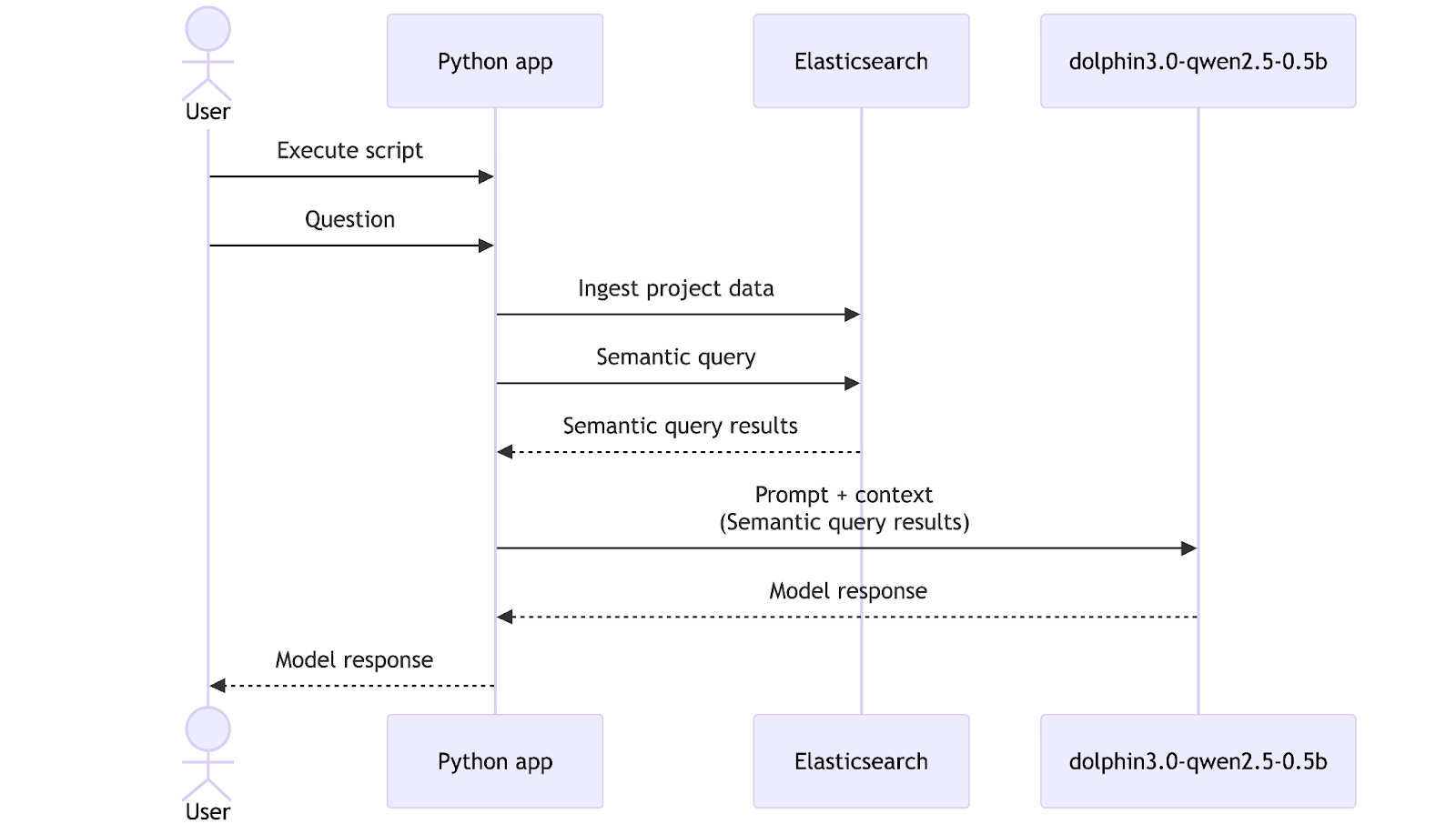
Now that we have an embeddings model and a general-purpose LLM model, it’s time to combine them with Elasticsearch and build a tool that can help us explore our data. For this walkthrough, we prepared a folder with relevant data for our mock CRM-migration project, including reports and meeting transcripts. In a real application, this ingestion step would typically be automated through a deployment pipeline or a background process, but here we will trigger it manually for simplicity.
Data overview
All the dataset is accessible in this GitHub repository.
/CRM migration data
|__
|-- meeting_QA-team_wednesday.txt
|-- meeting_development-team_monday.txt
|-- meeting_management-sync_friday.txt
|-- report_QA-team.txt
|-- report_development-team.txt
To illustrate how it looks, let's test a couple of examples:
meeting_development-team_monday.txt:
MEETING TRANSCRIPT - DEVELOPMENT TEAM

Date: Monday, September 16, 2025

Time: 09:00 AM - 10:15 AM

Participants: Alice (Tech Lead), John (Senior Developer), Sarah (Backend Developer), Mike (DevOps Engineer)

[09:02] Alice:Let's review the search API deployed last week. Any issues?

[09:03] Sarah:API works but performance degrades with 1,000+ queries per minute. Response times jump from 200ms to 3 seconds.

...WEEKLY REPORT - DEVELOPMENT TEAM
Week of September 16-20, 2025
Prepared by: Alice Thompson, Tech Lead
=== EXECUTIVE SUMMARY ===
Development team completed critical infrastructure components but identified performance bottlenecks requiring attention before production deployment.
=== KEY ACCOMPLISHMENTS ===
- Database schema and indexes completed for CRM
...Elasticsearch setup
Now we need a data structure and an inference endpoint in Elasticsearch to store and embed the data.
First, let’s create an inference endpoint using the .multilingual-e5-small model:
def setup_inference_endpoint():
    inference_id = "e5-small-model"
    try:
        es_client.inference.put(
            inference_id=inference_id,
            task_type="text_embedding",
            body={
                "service": "elasticsearch",
                "service_settings": {
                    "num_allocations": 1,
                    "num_threads": 1,
                    "model_id": ".multilingual-e5-small",
                },
            },
        )

        print(f"✅ Inference endpoint '{inference_id}' created successfully")
    except Exception as e:
        print(f"❌ Error creating inference endpoint: {str(e)}")
The response should be this:
{"inference_id":"e5-small-model","task_type":"text_embedding","service":"elasticsearch","service_settings":{"num_allocations":1,"num_threads":1,"model_id":".multilingual-e5-small"},"chunking_settings":{"strategy":"sentence","max_chunk_size":250,"sentence_overlap":1}}This will automatically download the model and create the inference endpoint for our embeddings during ingestion and query time. If you need to install the embeddings model in an air-gapped environment, you can follow these instructions.
Now, let’s create the mappings for the data. We will create 3 fields: file_title to store the file name, file_content to store the file content of each document, and semantic to store the embeddings and plain text content of both fields (file_title and file_content):
def setup_index():
    try:
        if es_client.indices.exists(index=INDEX_NAME):
            print(f"✅ Index '{INDEX_NAME}' already exists")
            return False

        print(f"Creating index '{INDEX_NAME}'...")
        es_client.indices.create(
            index=INDEX_NAME,
            body={
                "mappings": {
                    "properties": {
                        "file_title": {"type": "text", "copy_to": "semantic_field"},
                        "file_content": {"type": "text", "copy_to": "semantic_field"},
                        "semantic_field": {
                            "type": "semantic_text",
                            "inference_id": "e5-small-model",
                        },
                    }
                }
            },
        )
        print(f"Index '{INDEX_NAME}' created successfully")
 return True
    except Exception as e:
        print(f"Error creating index: {str(e)}")
	 exit(1)
Elasticsearch response:
{"acknowledged":true,"shards_acknowledged":true,"index":"team-data"}With this setup, each file from the CRM migration project gets indexed and becomes searchable.
Python script
To centralize Elasticsearch, data, and LLMs, we will create a simple Python script to ingest the data, make search requests to Elasticsearch, and send prompts to the LLM. This approach allows us to customize the workflow, change prompts and models, and automate processes:
Let’s create a venv environment to handle the dependencies required to execute the script:
python -m venv venv && source venv/bin/activateNow we need to install the elasticsearch dependencies to interact with our locally running Elasticsearch instance and requests will be used to handle HTTP requests:
pip install elasticsearch requests openaiAfter installation, create a Python file named `script.py` and let's start scripting:
import os
import time

from elasticsearch import Elasticsearch, helpers
from openai import OpenAI

ES_URL = "http://localhost:9200"
ES_API_KEY = "NDdDQWM1b0JPSDBFTV9JQzA0WVo6eHFXcWFJQmFYNzBwS1RjUllpRUNHZw=="
INDEX_NAME = "team-data"
LOCAL_AI_URL = "http://localhost:8080/v1"
DATASET_FOLDER = "./Dataset"


es_client = Elasticsearch(ES_URL, api_key=ES_API_KEY)
ai_client = OpenAI(base_url=LOCAL_AI_URL, api_key="sk-x") # The API key needs to have a value to work
In the code above, we import the necessary packages, set up some relevant variables, and instantiate the Elasticsearch Python client and the OpenAI client to handle AI requests. There’s no need for a real OpenAI API key to make it work;you can use any value there.
Using the bulk API, we created two methods to ingest the data directly from the folder to Elasticsearch index_documents and load_documents. To execute semantic queries, we'll use the semantic_search method:
def load_documents(dataset_folder, index_name):
    for filename in os.listdir(dataset_folder):
        if filename.endswith(".txt"):
            filepath = os.path.join(dataset_folder, filename)

            with open(filepath, "r", encoding="utf-8") as file: # UTF-8 encoding ensures proper handling of special characters and international text
                content = file.read()

            yield {
                "_index": index_name,
                "_source": {"file_title": filename, "file_content": content},
            }


def index_documents():
    try:
        if es_client.indices.exists(index=INDEX_NAME) is False:
            print(f"❌ Error: Index '{INDEX_NAME}' does not exist. ")
            exit(1)

        success, _ = helpers.bulk(es_client, load_documents(DATASET_FOLDER, INDEX_NAME))

        print(f"✅ Indexed {success} documents successfully")
        return success
    except Exception as e:
        print(f"❌ Error indexing documents: {str(e)}")
        exit(1)


def semantic_search(query, size=3):
    start_time = time.time()
    search_body = {
        "query": {"semantic": {"field": "semantic_field", "query": query}},
        "size": size,
    }

    response = es_client.search(index=INDEX_NAME, body=search_body)
    search_latency = (time.time() - start_time) * 1000  # ms

    return response["hits"]["hits"], search_latency
The query_local_ai function handles the request to LocalAI models.
def query_local_ai(prompt, model):
    start_time = time.time()

    try:
        response = ai_client.chat.completions.create(
            model=model,
            messages=[{"role": "user", "content": prompt}],
        )

        ai_latency = (time.time() - start_time) * 1000  # ms

        # Extract response text
        response_text = response.choices[0].message.content

        # Calculate tokens per second if usage info is available
        tokens_per_second = 0
        if hasattr(response, "usage") and response.usage:
            total_tokens = response.usage.completion_tokens
            if ai_latency > 0:
                tokens_per_second = (total_tokens / ai_latency) * 1000  # tokens/second

        return response_text, ai_latency, tokens_per_second
    except Exception as e:
        ai_latency = (time.time() - start_time) * 1000

        return f"Error: {str(e)}", ai_latency, 0
We will pass the Elasticsearch-retrieved data with a prompt to the query_local_ai function:
if __name__ == "__main__":
    print("🚀 Setting up infrastructure...")

    # Setup inference endpoint and index
    setup_inference_endpoint()
    is_created = setup_index()

    if is_created:  # Index was just created, need to index documents
        print("\n📥 Indexing documents...")
        success = index_documents()

        if success == 0:  # if indexing failed, exit
            print("❌ Documents indexing failed. Exiting.")
            exit(1)

        time.sleep(1)  # Wait for indexing to complete

    query = "Can you summarize the performance issues in the API?"

    print(f"🔍 Search: '{query}'")
    search_results, search_latency = semantic_search(query)

    context = ""
    citations = []
    for idx, hit in enumerate(search_results, 1):
        source = hit["_source"]
        context += f"[{idx}] File: {source['file_title']}\n"
        context += f"Content: {source['file_content']}\n\n"
        citations.append(f"[{idx}] {source['file_title']}")

    prompt = f"""Based on the following documents, answer the user's question.
        You MUST cite your sources using the format [1], [2], etc. when referencing information from the documents.

        Documents:
        {context}

        User Question: {query}
    """

    ai_model = "dolphin3.0-qwen2.5-0.5b"

    print(f"🤖 Asking to model: {ai_model}")
    response, ai_latency, tokens_per_second = query_local_ai(prompt, ai_model)

    print(f"\n💡 Question: {query}\n📝 Answer: {response}")
    for citation in citations:
        print(f"  {citation}")

    print(f"\n🔍 Search Latency: {search_latency:.0f}ms")
    print(f"🤖 AI Latency: {ai_latency:.0f}ms | {tokens_per_second:.1f} tokens/s")
Finally, we can see the complete script workflow: first, we ingest the documents using index_documents; then we retrieve Elasticsearch data using semantic_search, and with those results, we send a request to the dolphin3.0-qwen2.5-0.5b model to generate the LLM response with our requirements (including citation generation) by calling the query_local_ai function. The latency and tokens per second will be measured and printed at the end of the script.In this workflow, the query “Can you summarize the performance issues in the API?” serves as the user’s natural language request that guides both the search and the final LLM response.
Run the following command to execute the script:
python script.pyResponse:
📝 Answer:
The performance issues in the API can be summarized as follows:

1. **Search API degrades with 1,000+ queries per minute**: The search API has degraded, with performance degrades to a time of 3 seconds compared to the target of 200ms.

2. **Complex queries are slow and no caching layer**: Complex queries take longer to execute as expected.

3. **CPU limits during spikes**: The CPU usage is at 100% at the peak hour and limits to 70% at the peak hour.

📚 Citations:
  [1] report_development-team.txt
  [2] meeting_development-team_monday.txt
  [3] meeting_management-sync_friday.txt
See the complete answer here.
The model’s answer is satisfactory: it highlights the key performance issues in a concise way and correctly points out underlying causes, offering a solid basis for further diagnosis.
Latency
As shown in the application results above, we have the following latency:
📥 Indexing documents...
🔍 Search: 'Can you summarize the  performance issues in the API?'
🤖 Asking to model...

...

🔍 Search Latency: 14ms
🤖 AI Latency: 16044ms | 9.5 tokens/s
Adding all times, we can see that the entire flow takes 17 seconds to get a response, producing 9.5 tokens per second.
Hardware usage
The last step is to analyze the resource consumption of the entire environment. We describe it based on the Docker environment configuration shown in the following screenshot:
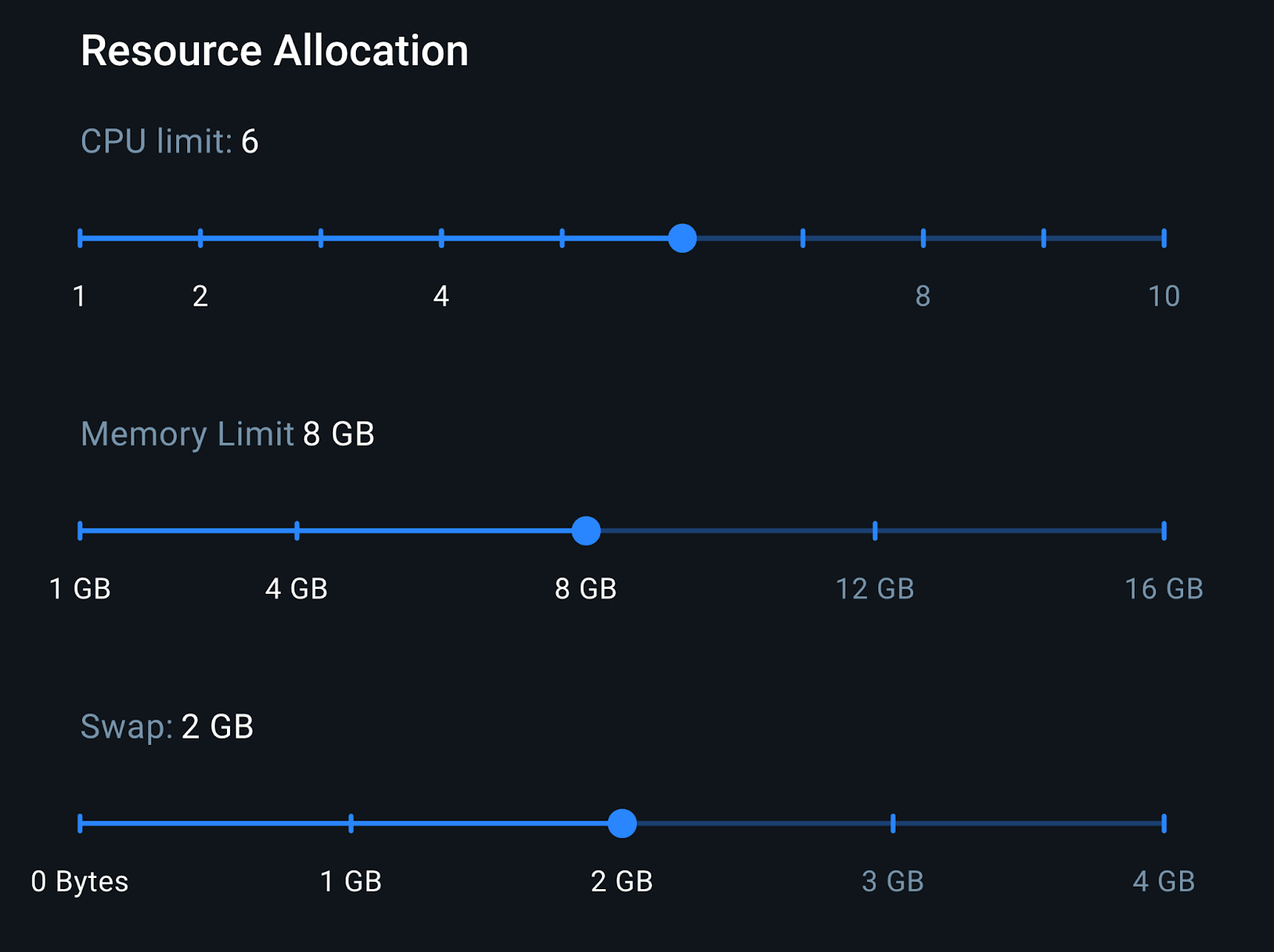
With 8GB of RAM, we have enough memory to run both the LocalAI container and the Elasticsearch container. This configuration is representative of a mid-range laptop setup, which helps us better approximate realistic inference performance.
Resources consumption
Using the Docker Live Charts extension, we can see the resource consumption of both containers working together while generating responses:
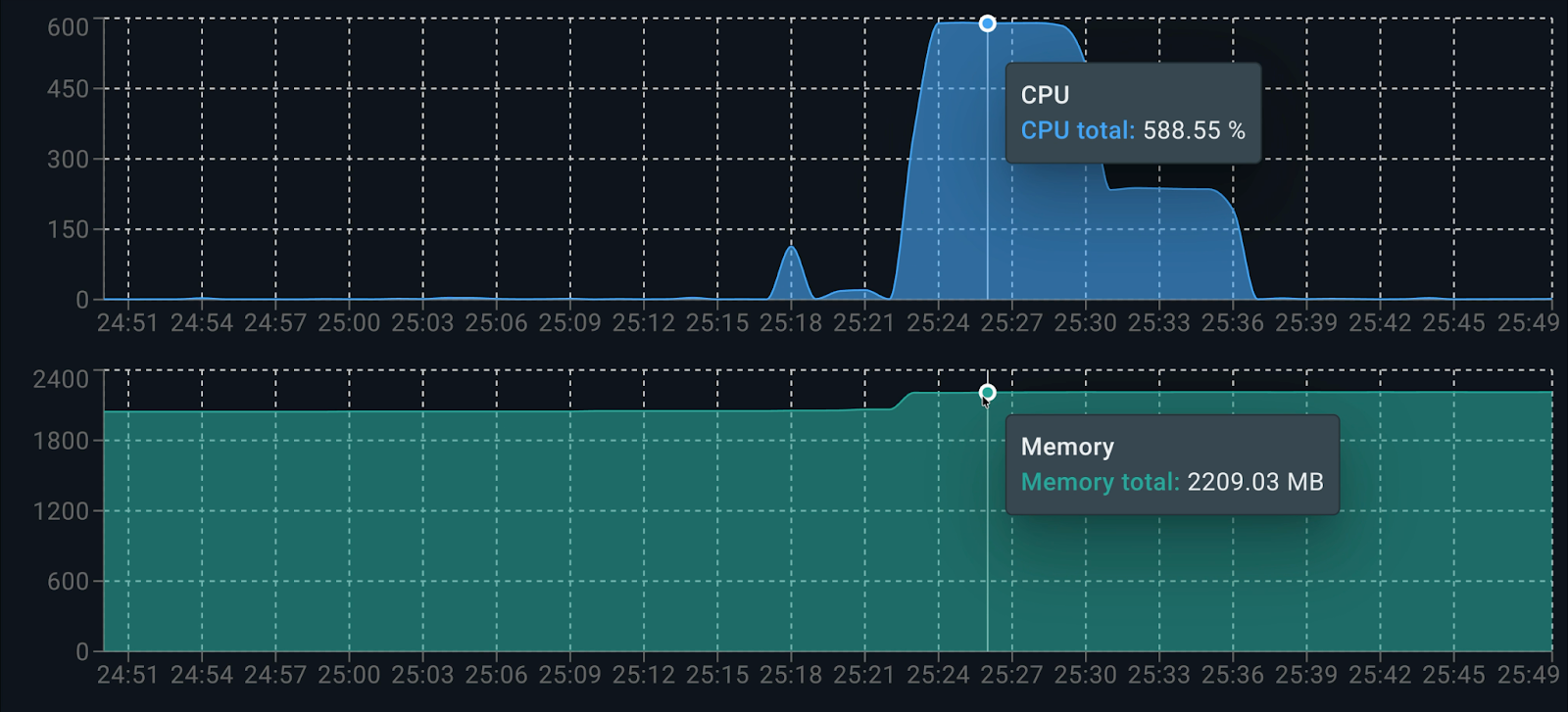
Consumption per container is as follows:
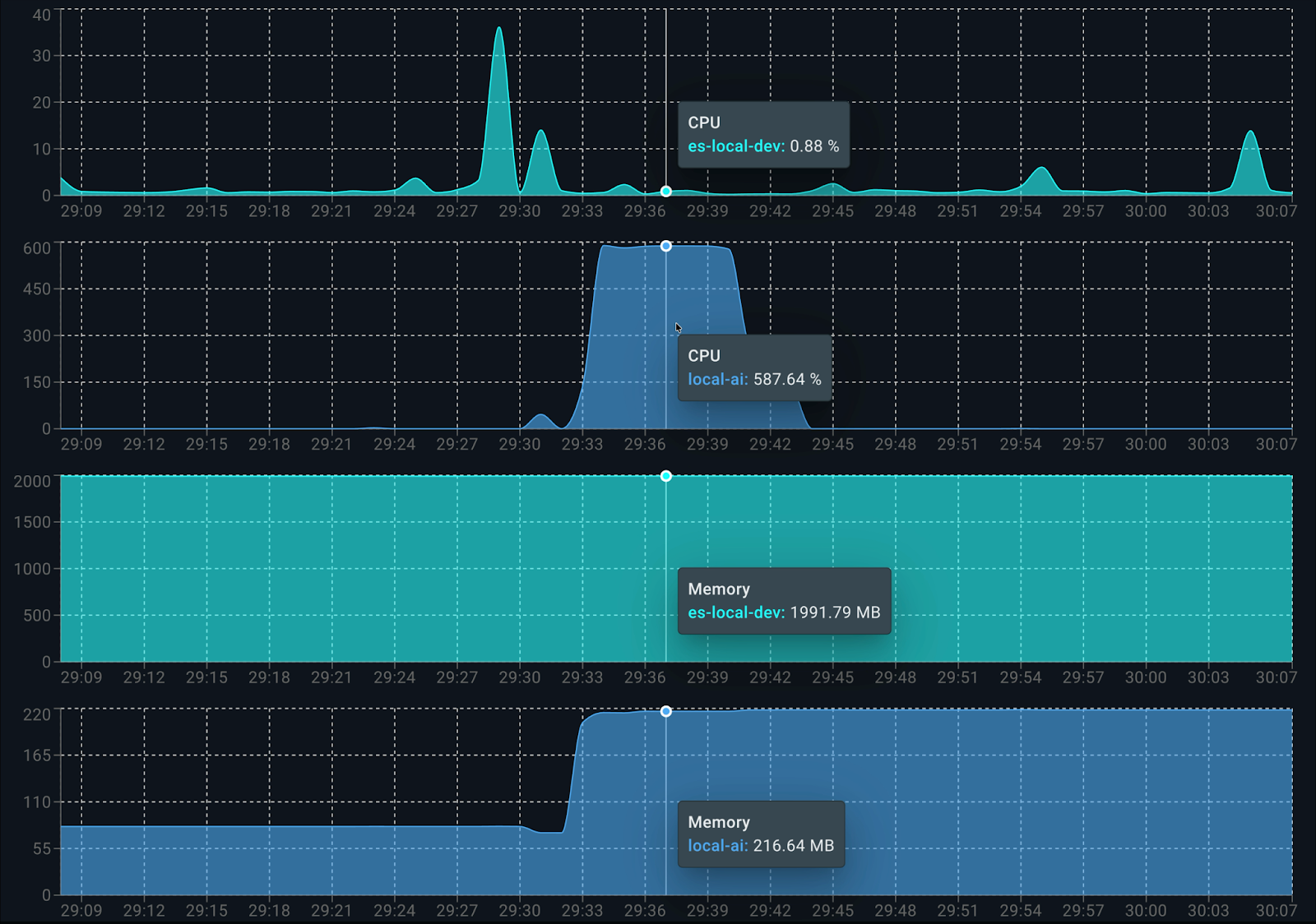
When it starts running, Elasticsearch uses about 0.5 cores for indexing data. On the LocalAI side, dolphin3.0-qwen2.5-0.5b consumes 100% of the 6 available cores when producing the answer. When analyzing memory consumption, it uses approximately 2.2GB in total: 1.9 GB for Elasticsearch and 200 MB for LocalAI (client and model).
Alternative model with higher resource requirements: smollm2-1.7b-instruct
To see the flexibility of this approach, let's change the model by just switching the variable ai_model to ai_model = "smollm2-1.7b-instruct" in code. This model requires significantly more memory due to its larger parameter count, which impacts the tokens-per-second rate and increases the overall latency when generating a response.
🤖 Asking to model: smollm2-1.7b-instruct

💡 Question: Can you summarize the performance issues in the API?
📝 Answer: The development team identified two key technical challenges for the API:

1.  The search API degrades at 1,000+ queries per minute, causing average execution times to jump from 200ms to 3 seconds.
2.  The root cause is complex database queries without a caching layer, leading to poor query performance.

📚 Citations:
  [1] report_development-team.txt
  [2] meeting_development-team_monday.txt
  [3] meeting_management-sync_friday.txt

🔍 Search Latency: 16ms
🤖 AI Latency: 47561ms | 4.8 tokens/s
As expected, being a heavier model, smollm2-1.7b-instruct produces fewer tokens per second (4.8) for the same question and takes significantly more time (around 30 seconds longer).
The response looks good and detailed. It’s similar to the one generated by the dolphin3.0-qwen2.5-0.5b model but takes longer to generate and consumes more resources, as this model uses approximately 1 GB of memory.
Alternative balance model: llama-smoltalk-3.2-1b-instruct
Now let’s try again by changing ai_model to llama-smoltalk-3.2-1b-instruct.
🤖 Asking to model: llama-smoltalk-3.2-1b-instruct
💡 Question: Can you summarize the performance issues in the API?

📝 Answer: Based on the documents, it appears that the main performance issue with the API is related to the search query optimization. The API degrades to around 1,000+ queries per minute (QP/min) when there are 12 of 18 API endpoints integrated with authentication. This issue is caused by complex queries without a caching layer, leading to performance degrades and slow response times.

However, there is also a smaller issue with the "Search" API, where it degrades to around 3+ seconds after 1.2 seconds execution time. This is likely due to multi-filter searches and the need for a caching layer to improve performance.

To address these issues, the team is working on implementing a caching layer (Sarah) and optimizing bool queries and adding calculated index fields (John) to improve query efficiency. They are also working on setting up auto-scaling for the database (Mike) to ensure that it can handle increased traffic.

A meeting was held to discuss these issues and a plan for improvement was agreed upon. The team will work together to implement a caching layer and optimize the queries, and the team will work with product team to ensure that the migration is completed on time and does not impact the October migration date.

📚 Citations:
  [1] report_development-team.txt
  [2] meeting_development-team_monday.txt
  [3] meeting_management-sync_friday.txt

🔍 Search Latency: 12ms
🤖 AI Latency: 21019ms | 5.8 tokens/s
Analyzing the results, llama-smoltalk-3.2-1b-instruct delivers responses similar to the other models, varying slightly in format and extension. However, this comes at a higher cost compared to the lighter model (about 5 seconds slower and 4 tokens fewer per second.) It also consumes more memory than the dolphin3.0-qwen2.5-0.5b model (around 500 MB more in total). This makes it reliable for accurate summarization tasks but less efficient for fast or interactive scenarios.
Table comparison
To get a better view of the model’s consumption, let’s include a table comparing the results:
| Model | Memory Usage | Latency | Tokens/s |
|---|---|---|---|
| dolphin3.0-qwen2.5-0.5b | ~200 MB | 16,044 ms | 9.5 tokens/s |
| smollm2-1.7b-instruct | ~1 GB | 47,561 ms | 4.8 tokens/s |
| llama-smoltalk-3.2-1b-instruct | ~700 MB | 21,019 ms | 5.8 tokens/s |
Conclusion
Combining e5-small for embeddings and dolphin3.0-qwen2.5-0.5b for completions, we could set up an efficient and fully functional RAG application on a mid-end laptop, with all data kept private. As we saw in the latency section from the first test we ran using the dolphin model, the part of the flow that takes the longest is the LLM inference step (16 s), while Elasticsearch vector retrieval was fast (81 ms).
dolphin3.0-qwen2.5-0.5b was the best candidate as a LLM to generate answers. Other models like llama-smoltalk-3.2-1b-instruct are indeed fast and reliable, but they tend to be heavier models. They require more resources, producing fewer tokens per second in exchange for slightly better quality in the responses.
Ready to try this out on your own? Start a free trial.
Want to get Elastic certified? Find out when the next Elasticsearch Engineer training is running!
Related content
May 26, 2026
Cutting agent costs with pre-computed context
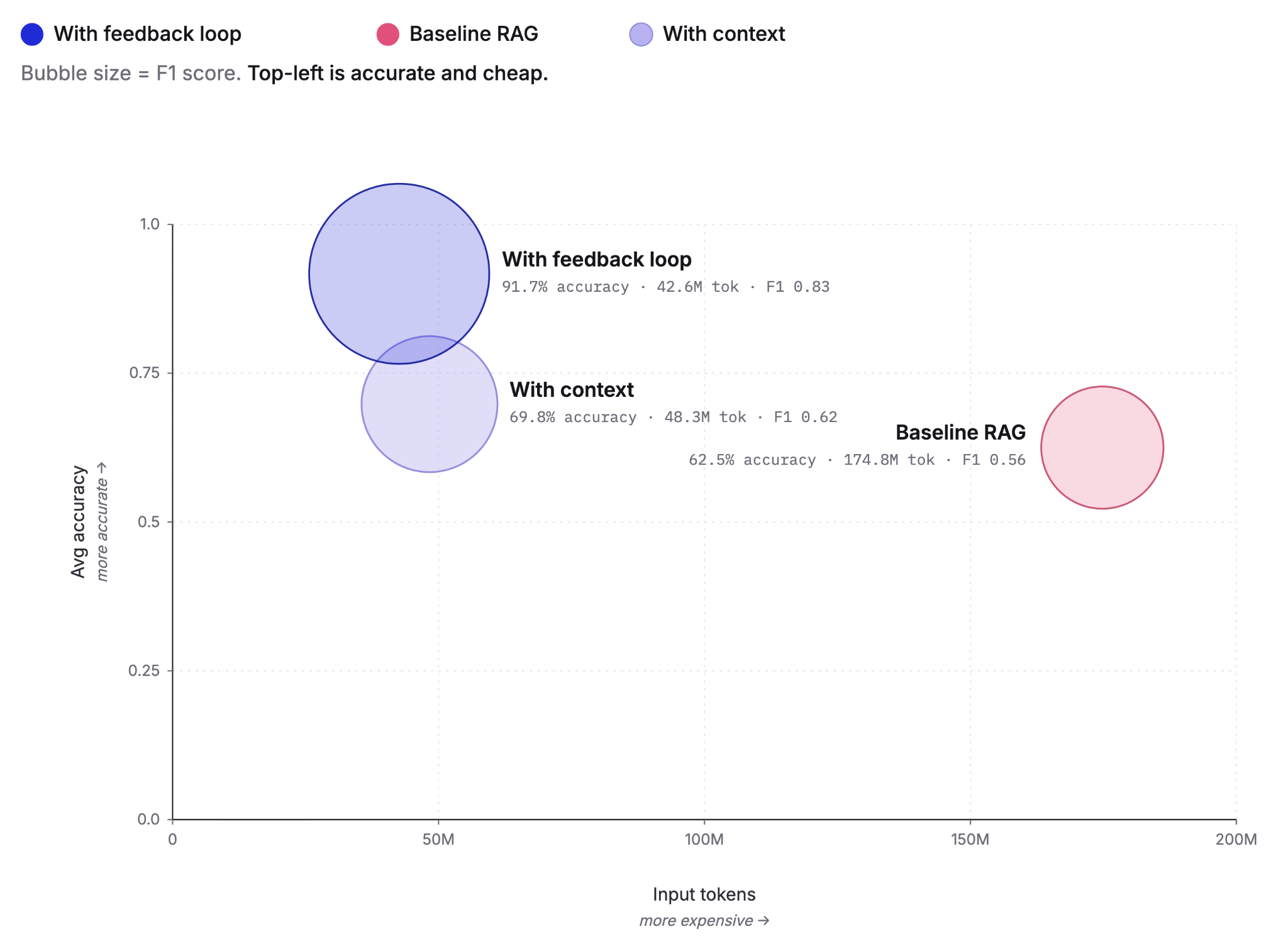
Pre-computing context as Knowledge Indicators reduces LLM agent token costs by up to 75% and improves answer accuracy from 60% to 92%. This post covers the extraction, retrieval and feedback loop that make it work, tested against the BrowseComp-Plus benchmark.
May 5, 2026
Elastic Agent Builder: How we taught AI agents to manage their own context
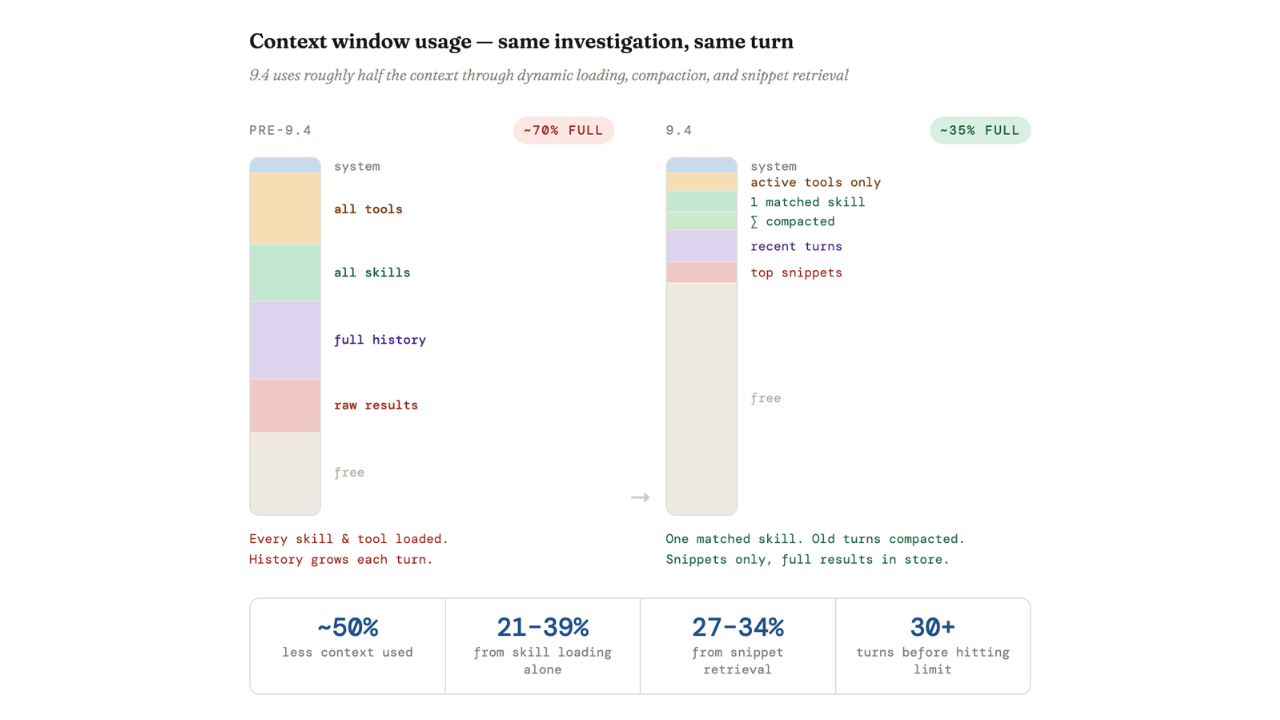
Agent Builder in Elasticsearch 9.4 ships dynamically loaded skills, a conversation context store, selective compaction, and external connectors to cut token costs by 40% and let agents handle their own context management.

April 29, 2026
Elastic-caveman: Cutting AI response tokens by 64% without losing the best of Elastic
Learn how to use elastic-caveman to cut AI response tokens while keeping the Elastic agentic brilliance.
April 8, 2026
How to build agentic AI applications with Mastra and Elasticsearch
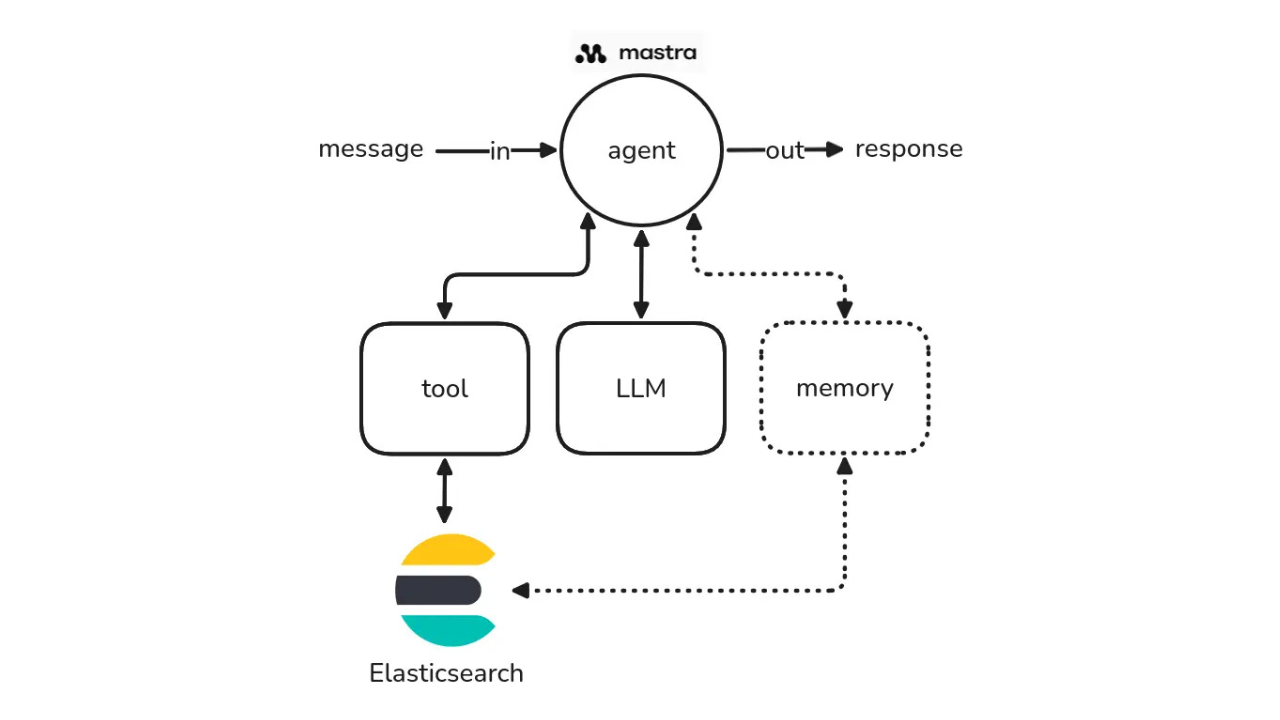
Learn how to build agentic AI applications using Mastra and Elasticsearch through a practical example.

March 23, 2026
Using Elasticsearch Inference API along with Hugging Face models
Learn how to connect Elasticsearch to Hugging Face models using inference endpoints, and build a multilingual blog recommendation system with semantic search and chat completions.